Rahul
 LeetCode #155: Min Stack — Design a Stack with O(1) Minimum Retrieval
 LeetCode #20: Valid Parentheses — Master the Stack Pattern
 LeetCode #15: 3Sum — Master Sorting, Two Pointers and Duplicate Handling
 Instruction vs Context in AI Prompts: How to Tell AI What to Do and What Information to Use
 Rust Structs and Enums: Building Powerful Data Models
 Dissecting the High-Level System Architecture of Booking.com
 Kanban vs. Scrum: Which Agile Methodology to Choose?
 The Scaling Journey of LinkedIn: From Startup to Professional Powerhouse
 Mastering Code Review: A Guide for Reviewers and PR Creators
 ChatGPT: Unveiling the Power of AI in Conversational Experiences with Kairos Coders

Kairos Coders are here to help
Have you ever opened a PDF and found that one or more pages are sideways or upside down?
This is a common problem with scanned documents, presentations, reports, and PDFs created from images.
Rotating a PDF means changing the orientation of one or more pages so that the content appears in the correct direction.
For example:
Sideways Page → Rotate 90° → Correctly Oriented Page
or:
Upside-Down Page → Rotate 180° → Correctly Oriented Page
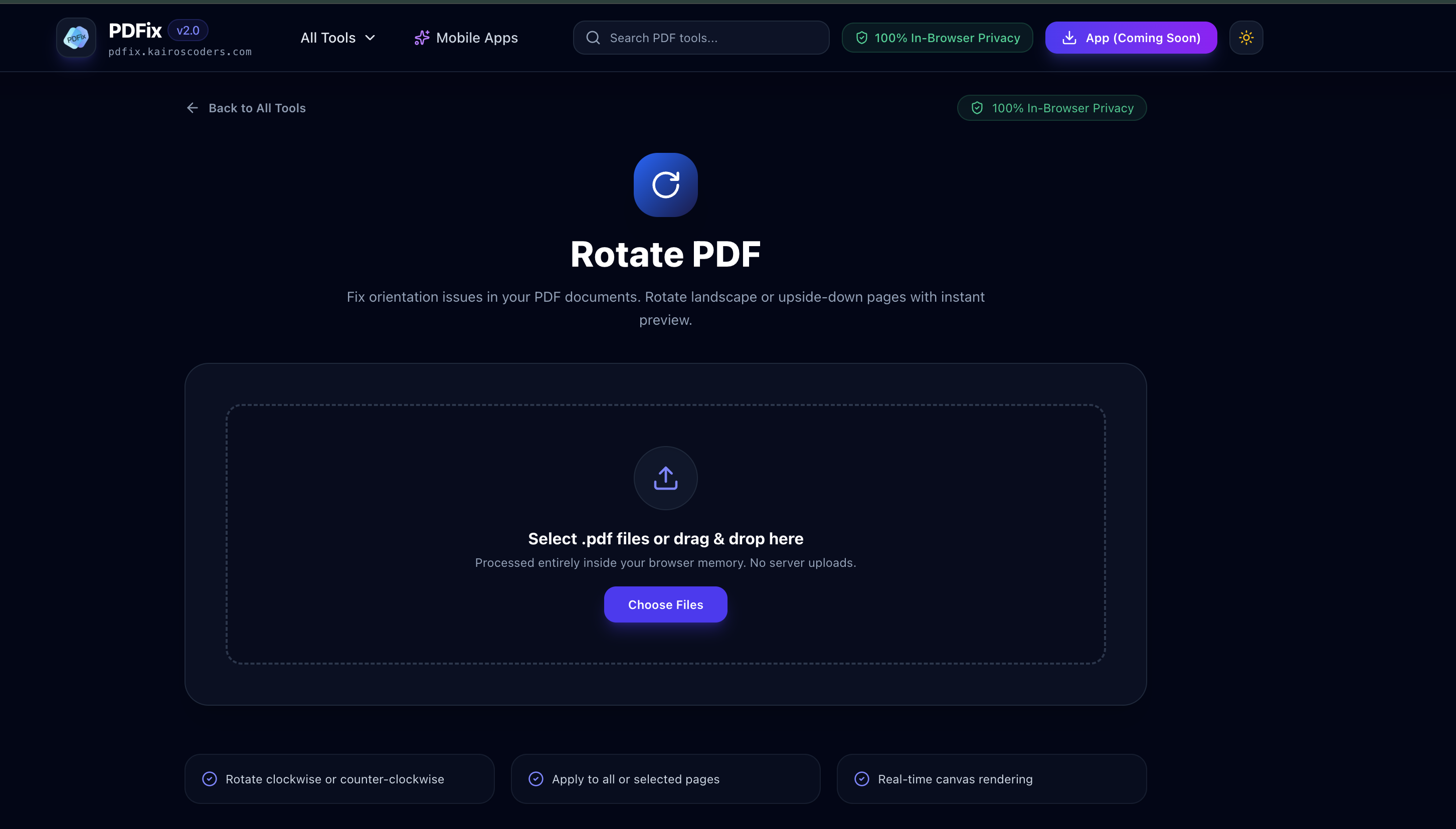
With the PDFix Rotate PDF tool, you can fix page orientation issues and preview the changes before creating the final document.
There are several reasons why PDF pages may appear sideways or upside down.
When physical documents are scanned, pages may be placed incorrectly on the scanner.
Documents photographed with a smartphone may be saved in the wrong orientation.
A PDF created by combining documents from different sources may contain pages with different orientations.
Some documents intentionally use landscape orientation, but you may need to rotate them depending on how you want the final document to appear.
Some applications may generate PDFs with incorrect page rotation metadata.
A correctly oriented PDF is easier to read, print, share, and review.
You may need to rotate a PDF when:
Instead of recreating the document, you can simply rotate the affected pages.
Rotating PDF pages with PDFix is designed to be simple.
Open the PDFix Rotate PDF tool.
Select the PDF document that contains the incorrectly oriented pages.
You can choose the document directly from your device.
The tool provides an instant preview, allowing you to see the document pages before applying the final changes.
This makes it easier to identify pages that need rotation.
Select the pages that need correction and rotate them to the desired orientation.
For example:
90° clockwise
90° counterclockwise
or another appropriate rotation depending on the page's current orientation.
Before finishing, review the pages to make sure the orientation is correct.
This is particularly useful when a document contains a mixture of portrait and landscape pages.
Once you're satisfied with the orientation, create your final PDF and save it to your device.
Your document is now ready to read, print, or share.
You don't always need to rotate the entire PDF.
Imagine you have a 20-page document where:
Rotating the entire document would create a new problem.
Instead, you can rotate only Page 11.
This is especially useful when working with:
Sometimes every page in a document has the wrong orientation.
For example:
Original
20 portrait pages displayed sideways
↓
Rotate
All pages rotated 90°
↓
Result
20 correctly oriented pages
Rotating the complete document can be much faster than correcting each page individually.
Landscape pages are wider than they are tall.
They are commonly used for:
If a landscape page appears incorrectly oriented when you open a document, rotating it can make the content easier to read.
For example:
Incorrect orientation
Wide page displayed sideways
↓
Rotate
↓
Correct landscape orientation
A PDF rotator can help fix these issues without changing the actual content of the page.
An upside-down page can make even a simple document difficult to read.
This often happens with scanned documents.
For example:
Page 8
Text appears upside down.
↓
Rotate 180°
↓
Text appears correctly.
This is one of the simplest problems to fix with a PDF rotation tool.
Scanned documents are one of the most common types of PDFs that require rotation.
When scanning physical paperwork, pages can accidentally be:
A PDF rotator lets you correct these issues after scanning instead of scanning the entire document again.
Imagine scanning a 30-page contract.
After scanning, you notice:
Instead of scanning everything again, you can rotate:
Page 15 → 90°
Page 30 → 180°
The remaining pages stay unchanged.
Rotating a PDF page is different from editing the content.
Rotation changes the orientation of the page, while the text, images, and other content remain part of the document.
For example:
Before
Text → sideways
After
Text → upright
The information itself hasn't been rewritten; the page has simply been rotated.
One useful feature when rotating documents is being able to see the result before creating the final PDF.
The PDFix Rotate PDF tool provides an instant preview so you can check the orientation of your pages before completing the process.
This helps prevent mistakes such as:
A visual preview is particularly useful when working with long PDFs.
A PDF rotation tool can be useful for almost anyone who works with digital documents.
Students may need to rotate scanned assignments, notes, certificates, or project documents.
Teachers can fix the orientation of worksheets, question papers, and scanned classroom materials.
Businesses can correct contracts, invoices, reports, and scanned paperwork before sharing them.
Researchers working with scanned papers and documents can quickly correct pages that aren't oriented correctly.
Office workers can prepare documents for clients, colleagues, printing, or official submission.
If you frequently scan physical paperwork, a PDF rotator can be a useful document-management tool.
Both tools can help with PDF page management, but they solve different problems.
Used to correct page orientation.
Example:
Sideways Page → Rotate → Correct Page
Used to manage page order, delete pages, and rotate pages as part of a broader organization workflow.
Example:
Reorder → Delete → Rotate → Save
If you only need to fix page orientation, a dedicated Rotate PDF tool is a more focused solution.
Rotating a PDF does not require converting it to another file format.
PDF → Rotate → PDF
PDF → Word
or
PDF → JPG
or
PDF → Excel
If your only problem is page orientation, converting the document is usually unnecessary.
Before saving the final document, look through the pages and identify which ones actually need rotation.
Always check the result before downloading or sharing the final document.
If only one page is incorrect, avoid rotating the entire document.
Documents may legitimately contain both portrait and landscape pages.
Make sure you don't accidentally "fix" a page that was intentionally landscape.
It's always a good idea to keep the original PDF before making changes.
For example:
Original-Report.pdf
and:
Report-Rotated.pdf
This gives you a backup if you need to make additional changes.
A 50-page report contains one sideways page.
Solution:
Rotate that individual page 90°.
A scanned certificate appears upside down.
Solution:
Rotate the page 180°.
Every page in a scanned document is sideways.
Solution:
Rotate the pages by 90°.
A report contains portrait pages and several landscape charts.
Solution:
Check each page individually and rotate only the pages that require correction.
A PDF rotator is a tool that changes the orientation of PDF pages so that they appear correctly.
Yes. Online PDF rotation tools allow you to fix page orientation directly through your web browser.
Yes. If only one page is sideways or upside down, you can rotate that individual page without changing the orientation of the other pages.
Yes. You can rotate multiple pages when the entire document has an orientation problem.
Yes. A 90-degree rotation is commonly used to correct sideways pages.
Yes. An upside-down page generally needs a 180-degree rotation to return to the correct orientation.
Yes. Rotating scanned pages is one of the most common reasons to use a PDF rotation tool.
Rotation changes the orientation of the page rather than rewriting the text or changing the information contained in the document.
Yes. PDFix provides an instant preview so you can check the orientation before completing the process.
Not necessarily. A browser-based PDF rotator can let you rotate PDF pages directly online.
A sideways or upside-down PDF page can make an otherwise perfect document frustrating to read.
Instead of recreating the document or converting it into another format, you can simply correct the page orientation.
Use PDFix Rotate PDF to fix incorrectly oriented PDF pages with an easy visual workflow and instant preview.
Whether you're working with a scanned document, business report, assignment, contract, form, or presentation, rotating the right pages can make your PDF much easier to read and share.
Upload your PDF → Rotate the pages → Preview the result → Download your corrected PDF.
Pixels to Perfection Design that Impresses