Rahul
 LeetCode #155: Min Stack — Design a Stack with O(1) Minimum Retrieval
 LeetCode #20: Valid Parentheses — Master the Stack Pattern
 LeetCode #15: 3Sum — Master Sorting, Two Pointers and Duplicate Handling
 Instruction vs Context in AI Prompts: How to Tell AI What to Do and What Information to Use
 Rust Structs and Enums: Building Powerful Data Models
 Dissecting the High-Level System Architecture of Booking.com
 Kanban vs. Scrum: Which Agile Methodology to Choose?
 The Scaling Journey of LinkedIn: From Startup to Professional Powerhouse
 Mastering Code Review: A Guide for Reviewers and PR Creators
 ChatGPT: Unveiling the Power of AI in Conversational Experiences with Kairos Coders

Kairos Coders are here to help
A PDF may look like a finished document, but sometimes its pages are not arranged the way you want.
You might have:
Instead of recreating the entire document, you can simply organize the existing PDF pages.
A PDF organizer allows you to visually manage the pages of a document by moving, deleting, and rotating them.
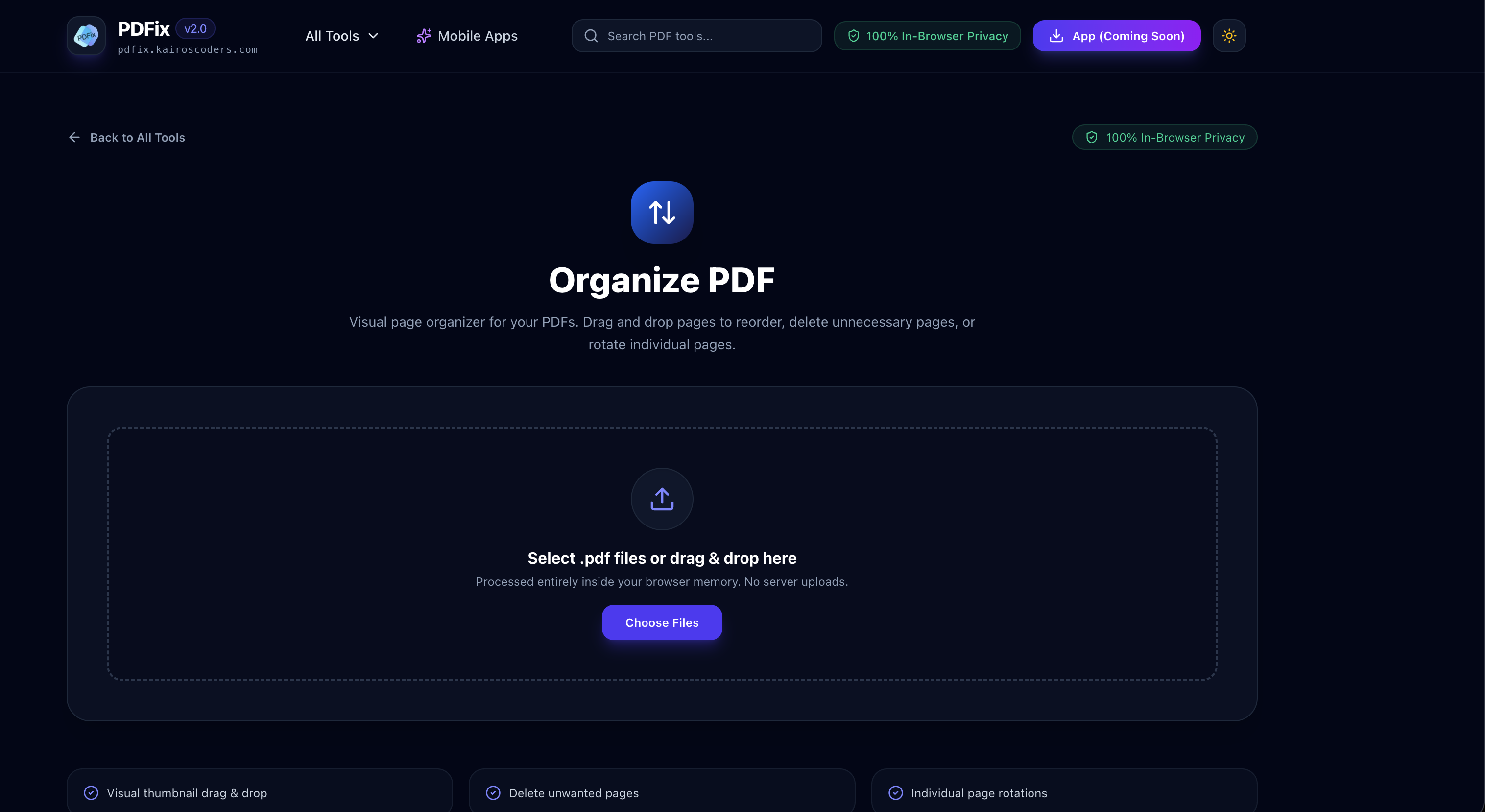
With the PDFix Organize PDF tool, you can visually organize your PDF pages using a simple page-management workflow.
PDF documents are frequently created from multiple sources.
For example, you might scan several pages, combine documents, export a presentation, or receive a PDF from someone else.
The resulting document may need some cleanup before it is ready to share.
A PDF organizer can help you:
Instead of editing the actual content of every page, you can manage the document at the page level.
Organizing a PDF doesn't have to be complicated.
Open the PDFix Organize PDF tool.
Select the PDF document you want to organize.
The tool displays the document's pages visually, making it easier to understand the structure of the PDF.
If pages are in the wrong order, simply rearrange them into the correct position.
For example:
Before
Page 1 → Page 4 → Page 2 → Page 3
After
Page 1 → Page 2 → Page 3 → Page 4
This is particularly useful when working with scanned documents or PDFs created from multiple sources.
If your PDF contains pages you don't need, remove them from the document.
Common examples include:
Sometimes a page is displayed sideways or upside down.
Instead of rotating the entire document, you can rotate the specific page that needs correction.
For example:
Incorrect
Page 8 → Landscape/sideways
Correct
Page 8 → Proper orientation
Once your pages are arranged, unnecessary pages are removed, and orientations are corrected, save the final PDF.
You now have a cleaner and better-organized document.
One of the most common reasons to organize a PDF is to reorder its pages.
Imagine receiving a 20-page scanned document where several pages were scanned in the wrong order.
Instead of scanning everything again, you can rearrange the pages.
For example:
Original
1 → 2 → 5 → 3 → 4 → 6
Organized
1 → 2 → 3 → 4 → 5 → 6
This can save considerable time when working with large documents.
Not every page in a PDF is always necessary.
You may have downloaded a document containing:
A PDF organizer allows you to remove pages that you don't want in the final document.
For example:
Original PDF
25 pages
↓
Remove 4 unnecessary pages
↓
Final PDF
21 pages
This makes the final document cleaner and easier to share.
Blank pages can sometimes appear when PDFs are created from scanners or office documents.
For example:
Page 1 → Content
Page 2 → Blank
Page 3 → Content
Page 4 → Blank
Instead of keeping those empty pages, you can remove them and create a cleaner document.
Another common PDF problem is incorrect page orientation.
Imagine a document where most pages are correctly oriented but one page appears sideways.
Rotating the entire PDF would not solve the problem.
A page organizer allows you to correct the specific page.
For example:
Page 7: Sideways
↓
Rotate Page 7
↓
Page 7: Correct orientation
This is especially useful for scanned documents.
Scanned PDFs are often more difficult to manage because pages may come from physical documents.
During scanning, you may encounter:
A visual PDF organizer makes it easier to identify these problems because you can see the pages before making changes.
A visual interface can be much easier to use than manually entering page numbers.
Instead of thinking:
Move page 17 after page 8
you can visually see the pages and drag them into the correct position.
This approach is especially useful when working with documents where page numbers are unclear or when you need to quickly identify duplicate or blank pages.
A PDF organizer can be useful for students, professionals, businesses, researchers, and anyone who works with digital documents.
Students can organize:
For example, a student may need to arrange a report in the correct order:
Cover → Certificate → Introduction → Chapters → Conclusion → References
Teachers can organize:
Businesses often work with contracts, reports, invoices, forms, and scanned paperwork.
Organizing pages before sending a document can make it more professional and easier to review.
Researchers may work with large collections of scanned papers and reports.
A PDF organizer can help arrange relevant pages and remove unnecessary ones.
Office workers can use PDF page organization when preparing documents for clients, colleagues, or official submissions.
Although both tools work with PDF pages, they solve different problems.
Multiple PDFs → One PDF
For example:
Report.pdf
Appendix.pdf
References.pdf
↓
Complete-Report.pdf
One PDF → Rearranged/cleaned PDF
For example:
Page 1 → Page 5 → Page 2 → Page 3
↓
Page 1 → Page 2 → Page 3 → Page 5
An organizer is useful when you already have one PDF but need to modify the order, remove pages, or correct page orientation.
These operations are also different.
One PDF → Multiple PDFs
For example:
100-page PDF
↓
Chapter 1.pdf
Chapter 2.pdf
Chapter 3.pdf
One PDF → One improved PDF
For example:
50-page PDF
↓
Reordered + cleaned + rotated
↓
50-page organized PDF
You can also use these tools together.
For example:
Split → Organize → Merge
This can be useful for complex document workflows.
Before saving the final document, verify that the pages follow the correct sequence.
Duplicate scans or accidentally repeated pages can make a document unnecessarily long.
Blank pages can make a professional document look unfinished.
Look for sideways or upside-down pages before sharing the document.
Before making major changes, keep the original PDF in case you need to restore something later.
Instead of:
document-final-new2.pdf
use something clearer:
Project-Report-Organized.pdf
This makes it easier to find later.
You have:
But they are in the wrong order.
You can rearrange them into:
Cover → Certificate → Declaration → Assignment → References
A scanned document contains 30 pages, including two blank pages and one duplicate.
You can remove those pages and create a cleaner 27-page PDF.
A 15-page document has one sideways page.
Instead of editing the entire document, rotate only that page.
A report contains several sections that were assembled in the wrong order.
You can visually rearrange the pages before sending the final document to a client.
A PDF organizer is a tool that allows you to manage the pages within a PDF. Depending on the tool, you can reorder, delete, and rotate pages.
Yes. A PDF page organizer allows you to rearrange pages into the desired order.
Yes. Unnecessary, duplicate, or blank pages can be removed from a PDF.
Yes. Individual pages can be rotated without necessarily changing the orientation of every page in the document.
Yes. PDF organization is particularly useful for scanned documents where pages may be out of order, duplicated, blank, or incorrectly oriented.
No. Organizing a PDF focuses primarily on managing its pages rather than editing the text inside them.
Not exactly. PDF editing can involve changing text, images, annotations, or other content. PDF organization focuses on managing the pages themselves.
Yes. Browser-based PDF organizers allow you to manage PDF pages directly from your web browser.
If your PDF has pages in the wrong order, unnecessary pages, or incorrectly rotated pages, you don't need to recreate the entire document.
Use PDFix Organize PDF to visually manage your PDF pages.
You can:
Whether you're preparing an assignment, cleaning a scanned document, organizing a business report, or preparing a PDF for submission, a visual page organizer can make the process much easier.
See your pages. Arrange them your way. Create a better PDF.
Pixels to Perfection Design that Impresses