
Rahul
 LeetCode #155: Min Stack — Design a Stack with O(1) Minimum Retrieval
 LeetCode #20: Valid Parentheses — Master the Stack Pattern
 LeetCode #15: 3Sum — Master Sorting, Two Pointers and Duplicate Handling
 Instruction vs Context in AI Prompts: How to Tell AI What to Do and What Information to Use
 Rust Structs and Enums: Building Powerful Data Models
 Dissecting the High-Level System Architecture of Booking.com
 Kanban vs. Scrum: Which Agile Methodology to Choose?
 The Scaling Journey of LinkedIn: From Startup to Professional Powerhouse
 Mastering Code Review: A Guide for Reviewers and PR Creators
 ChatGPT: Unveiling the Power of AI in Conversational Experiences with Kairos Coders

Kairos Coders are here to help
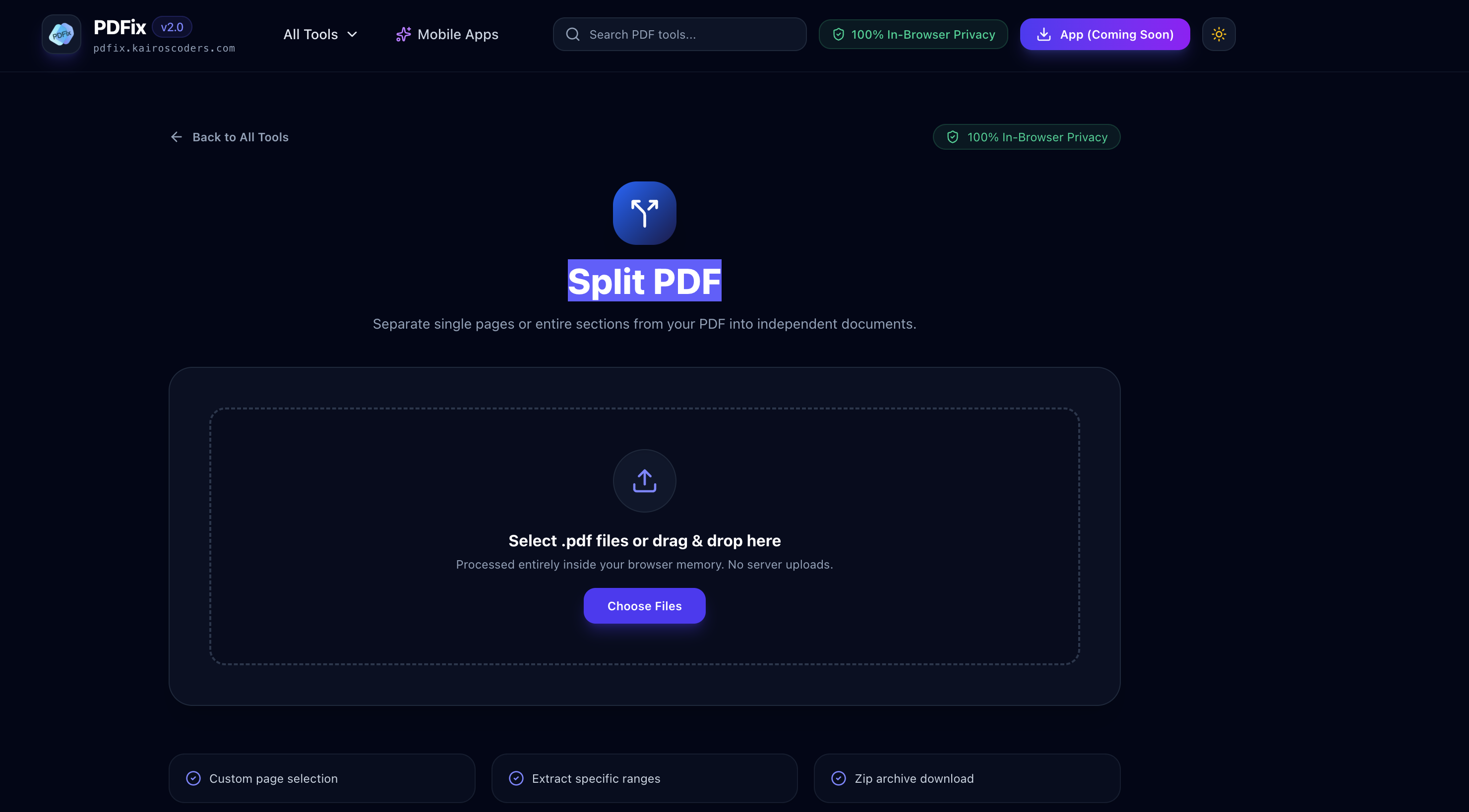
A PDF splitter is a tool that allows you to separate pages or sections from an existing PDF document and create independent PDF files.
For example, suppose you have a 50-page PDF containing:
If you only need pages 10–15, you don't necessarily need to share the entire 50-page document.
Instead, you can split the PDF and extract the pages you need.
With the PDFix Split PDF tool, you can select specific pages or page ranges and create separate PDF documents.
Large PDF documents often contain more information than you need to share or use.
Splitting a PDF can make document management much easier.
Sometimes you only need a few pages from a large document.
For example:
100-page PDF → Pages 25–30 → New PDF
This is useful when sharing only the relevant section of a report, book, manual, or document.
A large document may contain several independent sections.
You can split the document into smaller PDFs so that each section can be handled separately.
Instead of sending an entire document, you can extract the pages that are relevant to the recipient.
This can make sharing documents more convenient.
Scanned documents are often stored as large PDF files.
If you need individual sections or pages, splitting the PDF can help organize them into separate files.
Sometimes a PDF contains additional pages that aren't required for a particular submission or application.
Splitting allows you to extract only the pages you need.
Splitting a PDF with PDFix is straightforward.
Open the PDFix Split PDF tool.
Choose the PDF file you want to split.
You can also drag and drop the PDF into the tool.
Choose the pages you want to extract.
You can select individual pages or use specific page ranges.
For example:
Page 1
Pages 5–10
Pages 20–25
This allows you to extract exactly the section you need.
Start the splitting process after selecting the desired pages.
The selected pages are separated into independent PDF documents.
Once processing is complete, download the resulting PDF files.
If you have multiple extracted documents, PDFix also provides a ZIP archive download option for convenient downloading.
One of the most useful features of a PDF splitter is the ability to extract a specific range of pages.
For example, imagine you have a 75-page report and only need pages 31 through 40.
Instead of manually copying those pages, you can specify:
31–40
and create a separate PDF containing those pages.
This is particularly useful for:
You don't always need an entire section.
Sometimes you only need one or two pages.
For example:
Original PDF: 100 pages
Required pages: 7, 24, 56
A PDF splitter can be used to extract those specific pages instead of keeping the entire document.
This can be useful when sharing individual certificates, invoices, forms, receipts, or other pages from a larger document.
Splitting can also be useful when you want to break a large PDF into several smaller documents.
For example:
Original PDF
Complete-Report.pdf
can be divided into:
Introduction.pdfChapter-1.pdfChapter-2.pdfAppendix.pdfThis makes each section easier to manage independently.
A PDF splitter can be useful for almost anyone who regularly works with digital documents.
Students can extract specific chapters, assignments, notes, or reference pages from large PDFs.
Teachers can separate individual worksheets, chapters, or learning materials from a larger document.
Businesses can extract relevant sections from contracts, reports, invoices, and other documents.
Researchers can separate specific sections or pages from large research documents.
Professionals can extract the pages required for presentations, submissions, applications, or internal documentation.
Large scanned documents can be difficult to work with. Splitting them into smaller PDFs can make them easier to organize.
Manually separating PDF pages can be inconvenient, especially when working with large documents.
You may need dedicated PDF editing software or a desktop application.
An online PDF splitter provides a simpler workflow:
Upload PDF → Select Pages → Split → Download
PDFix takes this approach further by processing the PDF inside your browser memory rather than uploading the document to a server. According to the tool's page, PDFix performs its PDF operations locally in the browser and does not require server document uploads.
Privacy can be an important consideration when working with PDFs.
Documents may contain:
PDFix's Split PDF tool is designed to process files 100% locally in the browser, meaning the documents are processed inside your browser rather than uploaded to a remote server.
This browser-based approach can be particularly useful when working with sensitive documents.
You can use the tool directly from your web browser without requiring traditional desktop PDF software.
PDF processing takes place inside your browser memory, with no server document upload according to PDFix.
Select the specific pages you want instead of splitting the entire document blindly.
Extract specific ranges such as:
5–10
or
25–40
When multiple files are generated, you can download them together as a ZIP archive.
Here are some common scenarios.
You have a 200-page study material PDF but only need Chapter 4.
200-page PDF → Pages 85–110 → Chapter-4.pdf
You have a complete annual report but need to send only the financial section.
Annual Report → Financial Pages → Financial-Section.pdf
A scanned PDF contains multiple documents.
You can separate the relevant pages into individual PDFs for easier organization.
A large PDF contains several certificates.
You can extract the pages you need for a particular application.
You have a long research document but need only a specific section for reference.
You can extract those pages and create a smaller PDF.
Make sure you know which pages contain the information you need.
If possible, verify the pages before creating your final files.
Instead of generic names, use filenames such as:
Chapter-3.pdf
Financial-Report.pdf
Certificate-Section.pdf
This makes your files easier to identify later.
If you may need the complete document later, keep a copy of the original PDF before splitting it.
Splitting and merging are opposite PDF operations.
One PDF → Multiple PDFs
For example:
Complete-Report.pdf
↓
Chapter-1.pdf
Chapter-2.pdf
Chapter-3.pdf
Multiple PDFs → One PDF
For example:
Chapter-1.pdf
Chapter-2.pdf
Chapter-3.pdf
↓
Complete-Report.pdf
If you regularly work with PDF documents, both operations can be useful depending on what you need to accomplish.
A PDF splitter is a tool that separates pages or sections from a PDF and creates new PDF documents.
Yes. Individual pages can be extracted from a PDF using a PDF splitting tool.
Yes. You can select individual pages or specific page ranges to extract the content you need.
Yes. For example, you can extract pages 10–20 from a larger PDF and create a separate document.
Yes. A PDF can be divided into multiple smaller documents based on the pages or sections you select.
No.
PDF splitting separates a document into multiple files.
PDF compression reduces the file size of a PDF.
They solve different problems.
Yes. Browser-based PDF tools allow you to split PDF documents directly from a web browser.
PDFix states that its Split PDF tool processes documents entirely inside your browser memory and does not upload documents to a server.
A browser-based PDF splitter can be accessed from supported mobile browsers, allowing you to work with PDF files without relying on traditional desktop software.
Whether you need to extract a single page, separate a chapter, or divide a large document into smaller sections, splitting a PDF can make document management much easier.
With PDFix Split PDF, you can select specific pages and ranges, process your PDF directly in your browser, and download the resulting documents.
Instead of sharing an entire PDF when you only need a small section, extract the pages you actually need.
One large PDF → Select the pages → Split → Separate documents.
Pixels to Perfection Design that Impresses